
Even if you know nothing about coding and have never built a website, by following this article step by step, you can have a professional corporate website.
Before you start, please forget those technical terms you don't understand (HTML, CSS, PHP). Building a website with the LingHang theme is essentially like„decorating a house“:
- Domain Nameis your home'shouse number(e.g., baidu.com).
- Serveris your home'sHouse(where all images and text are stored).
- LingHang Themeis your home'sDecoration style(determines whether the website looks like a factory or a tech company).
- Content modulesare the home'sfurniture(sofa, bed, table, corresponding to the website's Banner, About Us, Product Showcase).
What we need to do is just put the furniture in.
Phase 1: Preparation Before Starting (Buying a House and Getting the Keys)
Before decorating, we must first „buy the house.“
You need to purchase two things:Server (house) and Domain (house number). For beginners, it is recommended to useSiteGround或Hostinger(very easy to operate, comes with Chinese).
- Purchase Server and Domain:
- Go to SiteGround or Hostinger to purchase an entry-level plan or the recommended mid-range plan. The LingHang theme is not resource-intensive, so almost every plan is sufficient for you.
- You can purchase the domain together with the server on the purchase interface, or buy it from other domain websites. You can refer toDomain GuideAn article.
- Prepare the LingHang Theme:
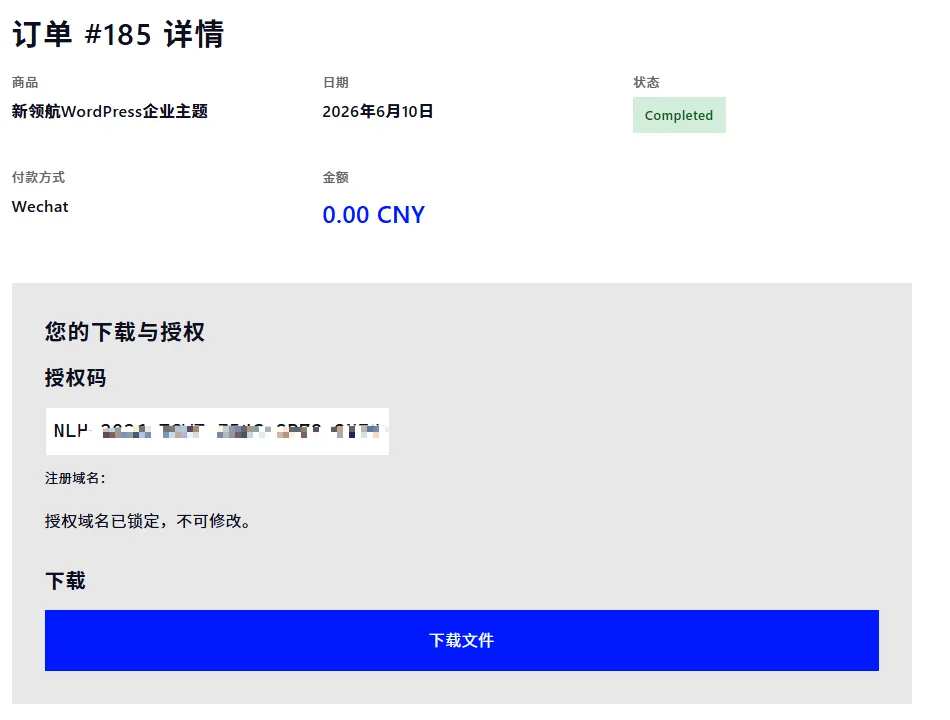
- 去LingHang Theme Sales WebsitePurchase and download. You will get a .zip compressed package (this is the blueprint), priced at 498 yuan (permanent use, very cost-effective)。
- After purchase, you will receive anauthorization code, keep it safe, you will need it later.
Phase 2: Laying the Foundation (Installing WordPress)
This step isautomated, much simpler than you think.
Currently, mainstream servers (such as SiteGround) have already installed WordPress for you by default after purchase.already installed WordPress for you by default。
You just need to:
- Log in to your server backend, find the „WordPress backend login link“ (usually
你的域名/wp-admin). - Enter your username and password, and you will enter the WordPress Dashboard — this is your „construction headquarters“。
Phase 3: Hard Decoration (Installing the LingHang Theme)
Now, we need to put the LingHang „decoration style“ into the house.
- Upload Theme:
- Activate:
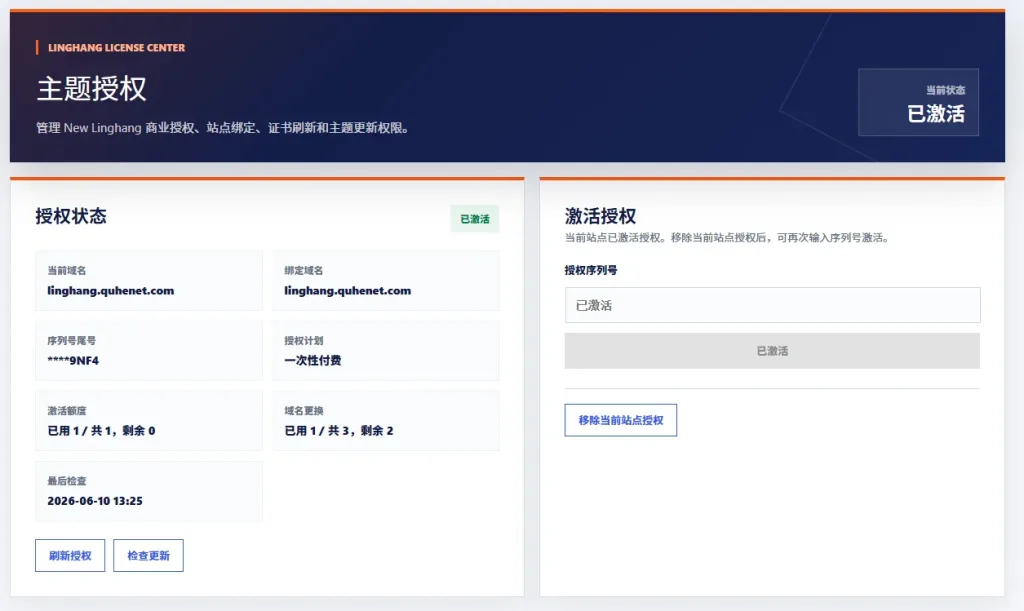
- After installation, click „Activate“.
- At this point, a prompt will appear at the top of the page asking you to activate the theme. Click the prompt link and enter the authorization code you received upon purchase. This completes the license verification.
Phase 4: Furnishing (Fill-in-the-blank site building – core operations)
This is the most enjoyable step of the LingHang theme.You don„t need to fiddle with complex “Customize„ settings like you would with other themes.
The LingHang theme is based on WordPress's latest Gutenberg Editor. Simply put, it's like building blocks。
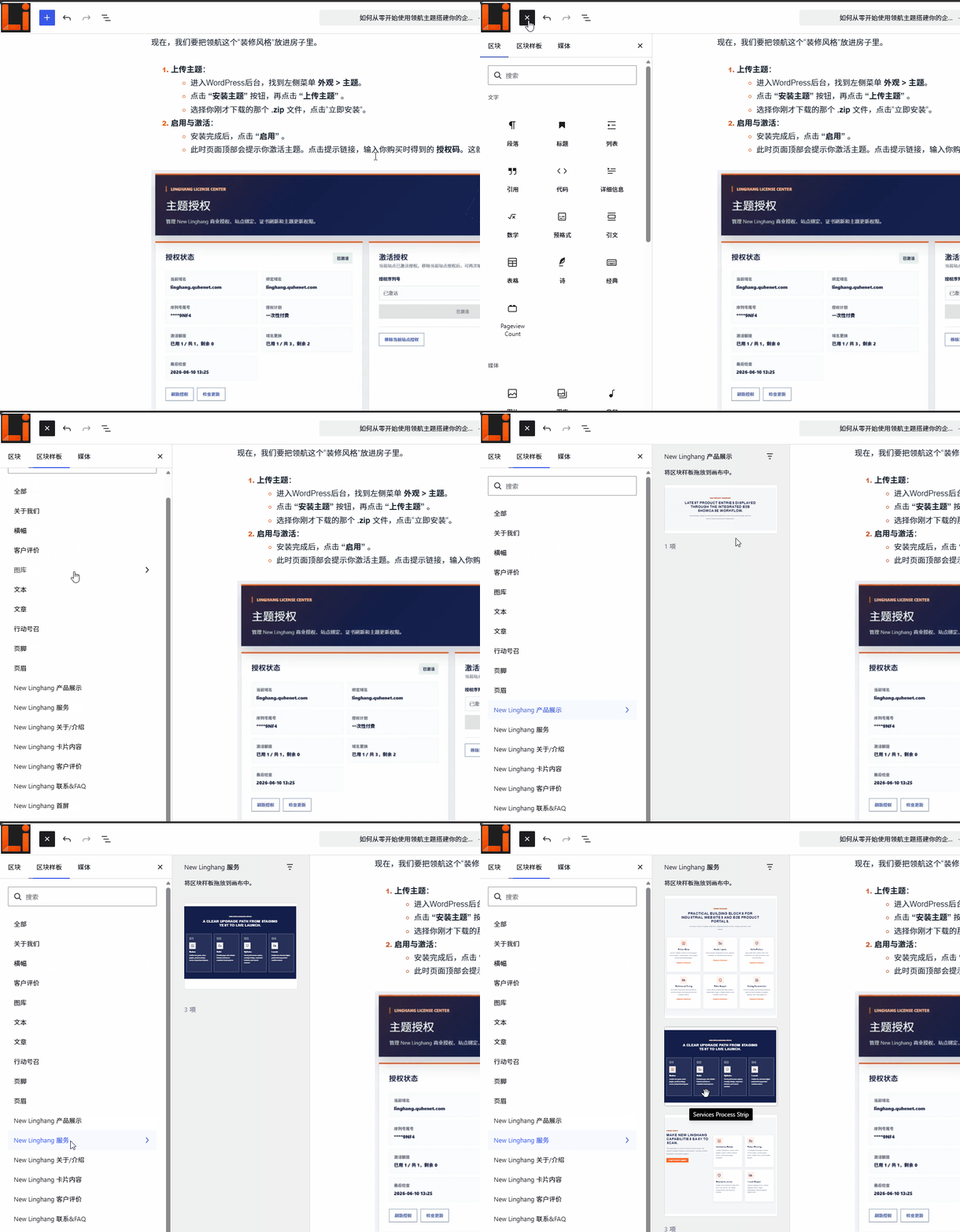
What you need to do:New Page -> Click the plus sign -> Select a block -> Replace text and images -> Publish.
Suppose we want to create Home:
- Create a Page:
- In the left menu, click Pages > Add New。
- Enter „Home“ as the title, then click the „Publish“ button next to it (publish first, then we'll edit the content).
- Set a Static Homepage:
- This is the step beginners most often miss. Go to Settings > Reading。
- Set „Your homepage displays“ to „A static page“, then select the „Home“ page you just created below. Click Save.
- If you skip this step, your website will display „Latest Posts“ instead of the company introduction.
- Start Building Blocks:
- Go back toPages, click Edit on „Home“.
- You will see a„+“ icon(Add Block) in the middle of the page. Click it, select a block pattern, insert the pattern you need, and then modify the content.:
- Hero Block (Slideshow Hero Image):Select it. Replace the copy and images with your own.
- About Us:Select it. Replace the demo text with your company introduction.
- Services:Select it. List your three core services.
- Contact (Contact Form):Select it.
- It's that simple.Whatever functionality you need, just click the plus icon to „insert“ the corresponding module. No coding required.
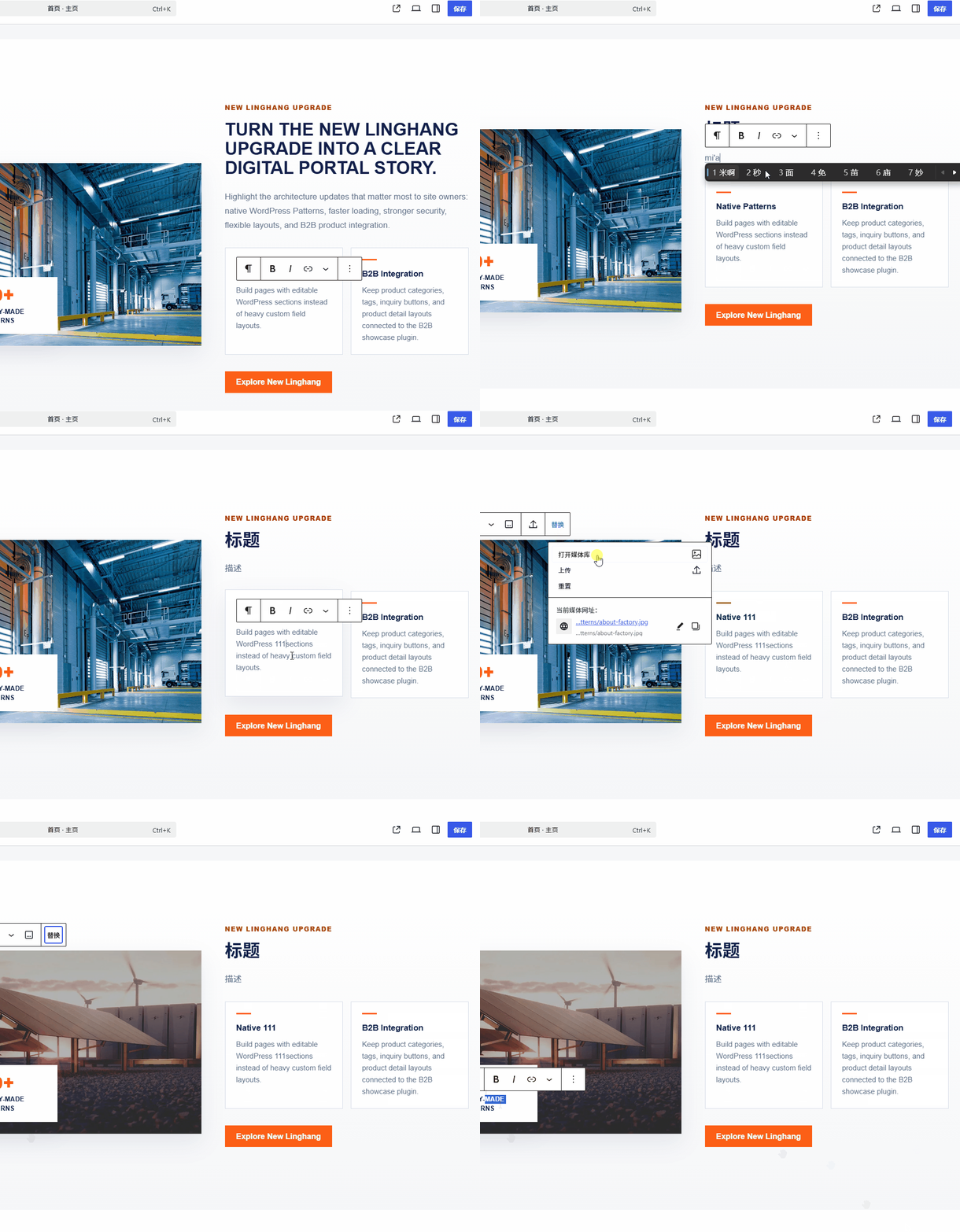
Note that the backend interface may look different from the frontend. This is normal because the resources loaded in the backend and frontend differ.
Other Frequently Asked Questions
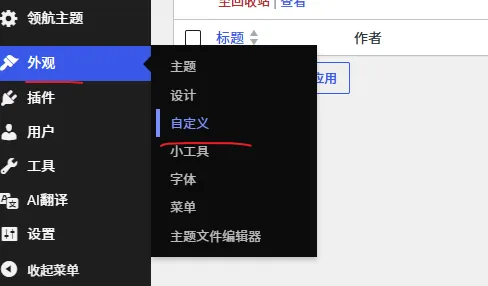
How to modify the LOGO image?
在AppearanceUnder the menu,Customizeinside,Site Identitysettings.
How to publish products?
InstallB2B Product Management Plugin, then view the plugin's help guide to learn how to use the product features.
How to add multilingual support to the theme?
The theme defaults to only English (backend interface in Chinese). If you need multilingual support, you canachieve it by installing a multilingual plugin。
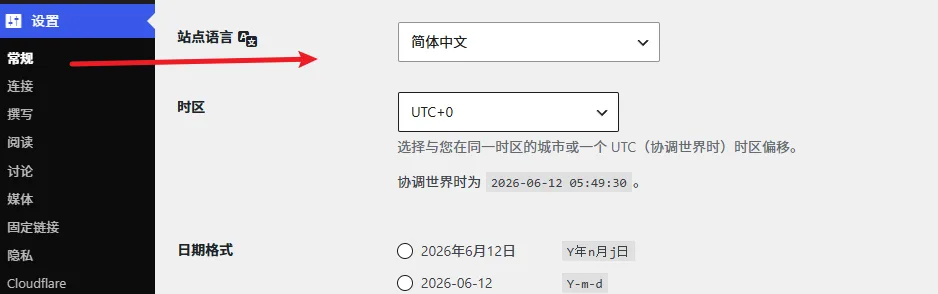
Why does the website frontend display Chinese content?
This is because your WordPress site is set to Chinese language, and some plugins with bilingual support will default to displaying Chinese.
在Site backend→Settings→General, selectSite Languageas English. If you are not familiar with English, after setting the site language to English, click on your username at thetop right cornerto enter theProfilepage, then change your account'sLanguagetoChinese. This way, you see the site in Chinese, while visitors still see it in English.
How to add products and product categories to the navigation menu?
See tutorial:How to add products/product categories to the navigation menu – LingHang WordPress Business Theme
How to add a super navigation menu like the demo site?
See tutorial:LingHang Theme Mega Menu Tutorial
Phase 5: Final Touches (Pre-launch Checks and Optimization)
The website design is done, but there are a few final „cleanup“ steps to take.
- Clean Up Junk Data (For Old Websites Only):
- If you are installing LingHang on an old website with messy content, it is recommended to use theWP Resetplugin to restore the website to a fresh state (cleaning up junk left by the previous theme) before installing the LingHang theme.If it's a new website, skip this step.
- Install Plugins (Minimalist Approach):
- Do not install dozens of plugins! The LingHang theme is already fast. You only need to install these:
- Speed category: Install a caching plugin (such as WP Super Cache or W3 Total Cache).
- SEO category: Install Rank Math or Yoast SEO (used to set keywords and descriptions).
- Security category: You can install a security plugin, or set a complex password, and keep plugins updated, so the risk of your website being infected is very low.
- Do not install dozens of plugins! The LingHang theme is already fast. You only need to install these:
- Open the door to search engines (very important!):
- During the initial setup, I suggested you check the option “discouraging search engines” in Settings > Reading.Now that the website is ready, you must uncheck that option!
- If you don't open it, Google will never index your website, and others won't find you.
Summary: Newbie Pitfall Avoidance Guide
- More plugins are not necessarily better: Many websites freeze because they have dozens of plugins installed. The LingHang theme comes with many built-in features, so youdon't needto install additional page builders (such as Elementor, because LingHang is based on Gutenberg).
- Always compress images: Uploading multi-megabyte photos taken with your phone directly will make the website very slow. It is recommended to enable the theme's WebP format conversion feature.
- Make good use of after-sales service: The LingHang theme provides Chinese after-sales support. If you encounter something you don't understand, just ask customer service on WeChat directly; don't struggle and click around blindly.
At this point, you already have a professional-looking, fast-loading business website. The rest is to gradually fill in content and let Google like your site.